Claude Desktop App: Official Download, Setup and What It Adds (5 Steps for Founders)
Most founders meet Claude in a browser tab. It sits between thirty other tabs, gets closed by accident, and can only see what you paste into it. That works for quick questions. It stops working the moment you want Claude to touch your actual files, your apps or a task that runs longer than one reply.
This guide shows you how to set up the Claude desktop app the right way: where to download it officially for Mac, Windows and Linux, what your computer needs, and what the app adds over the browser, from Cowork and the Claude Code tab to local connectors and quick entry. Everything here comes from official Anthropic pages, as of September 2026. The app changes fast, so check the linked help pages before you rely on a detail.
The short version:
- The Claude desktop app is Anthropic's native app for macOS, Windows and Linux, and the only official download source is claude.com/download.
- It needs macOS 11 or later, Windows 10 or later, or Ubuntu 22.04+ and Debian 12+ on Linux, where the app is still in beta.
- The app has three tabs: Chat for conversations, Cowork for longer agentic work, and Code for software development.
- Chat works on the Free plan, while the Cowork and Code tabs need a paid plan (Pro, Max, Team or Enterprise).
- What the browser cannot do: work in folders on your computer, run local connectors through desktop extensions, and, on Mac, open Claude from any app with a double tap on Option.
What is the Claude desktop app?
The Claude desktop app is Anthropic's installable version of Claude for your computer. It has three tabs: Chat for conversations, Cowork for Dispatch and longer agentic work, and Code for software development (Claude Code Docs). Unlike the browser version, it can read and write files in folders you connect on your computer and run local tools, which is why Anthropic requires the app for those features (Claude Help Center).
You will see it called Claude Desktop, Claude for Desktop, Claude for Mac or Claude for Windows. It is the same app. You sign in with your normal Claude account, so your chats and projects are the same ones you see on claude.ai.
Where to download it: only from the official page, claude.com/download. It offers a macOS build, a Windows build for x64 PCs, a separate Windows build for Arm64 PCs, and Linux in beta. Skip third party download sites and "Claude for PC" installers from app aggregators. You gain nothing and you hand a stranger an installer that sits next to your email and files.
The core: what the desktop app adds over the browser
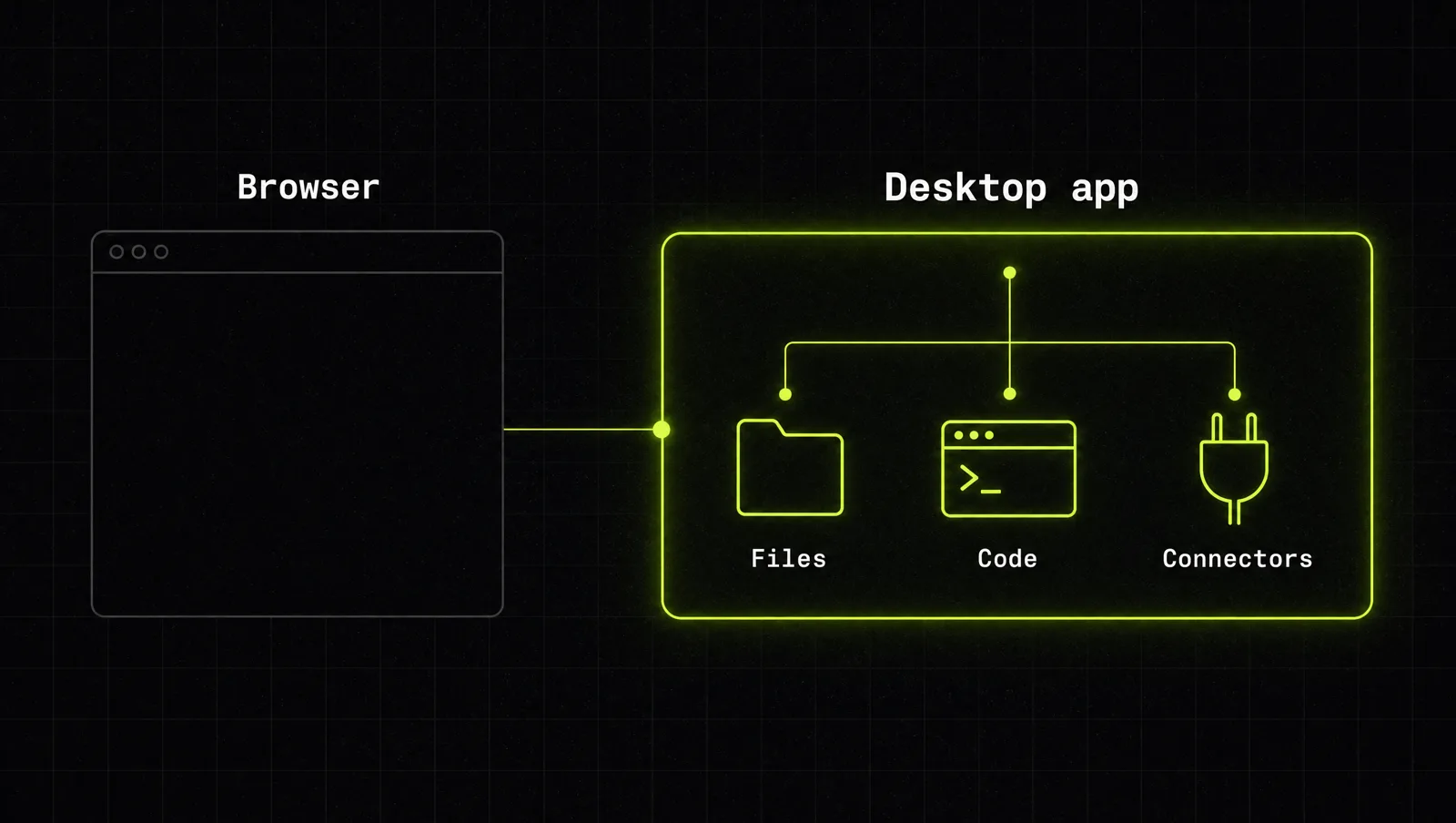
The browser is fine for chat. The desktop app matters when Claude needs to reach beyond the chat window. Here is what changes, as documented today.
| Capability | Browser (claude.ai) | Desktop app | Why a founder cares |
|---|---|---|---|
| Chat | Yes | Yes, on all plans | Same account, same history |
| Cowork with local files | Cowork runs on web too, but no access to your computer | Reads and writes files in folders you connect, with the app open | Reports, spreadsheets and decks built from your real files |
| Claude Code tab | No local project folders or integrated terminal | Parallel sessions, integrated terminal, file editor, diff review, app preview | Build small tools without living in a terminal |
| Local connectors | Remote connectors only | Desktop extensions install local MCP servers in one click | Claude works with tools on your machine |
| Computer use | No | Research preview on macOS and Windows, Pro and Max | Claude operates apps that have no API |
| Quick entry | No | Mac only: double tap Option from any app | Screenshot, attach a window or dictate in seconds |
Sources: Claude Code Docs, Claude Help Center: Cowork on web, desktop and mobile, local MCP servers, quick entry.
The pattern: the browser is a place you visit, the desktop app is a place where Claude can work with what is already on your machine. If you only ever ask questions, the browser is enough. If you want Claude to deliver finished work, install the app. For the deeper dives, read our guides to Claude Cowork, how to use Claude Code and Claude MCP connectors.
How to set up the Claude desktop app in 5 steps
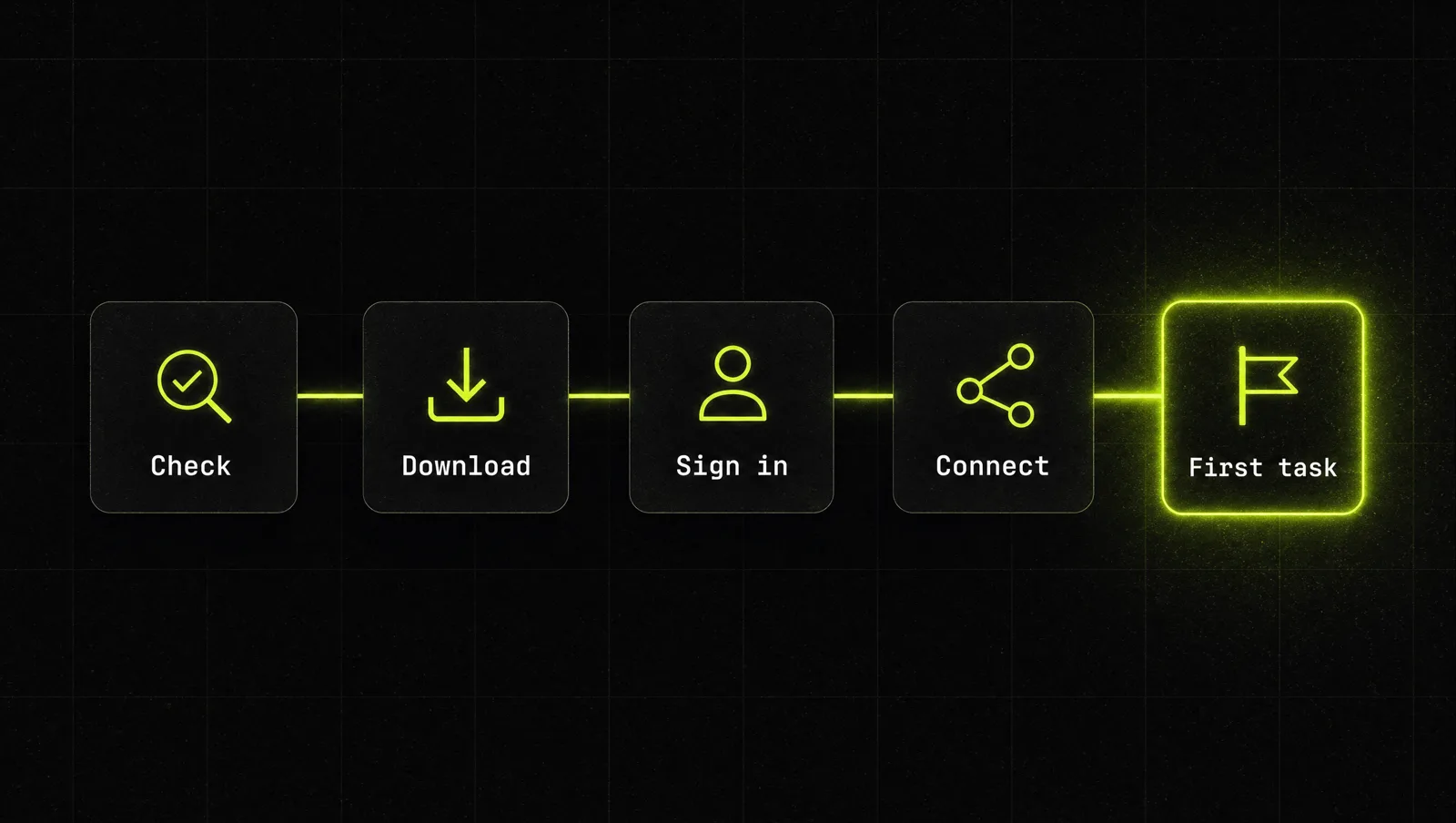
Step 1: Check your computer and your plan
Anthropic lists these minimum requirements (Claude Help Center):
- Mac: macOS 11 (Big Sur) or later. The macOS download is a universal build for Intel and Apple Silicon (Claude Code Docs).
- Windows: Windows 10 or later, with separate installers for x64 and Arm64 PCs.
- Linux (beta): Ubuntu 22.04 LTS or later, or Debian 12 or later, on x64 or arm64.
Then check your plan. As of September 2026, Chat is available on every plan including Free, while Claude Code and Cowork in the desktop app need Pro, Max, Team or Enterprise (Claude Help Center). For what each plan costs, see our Claude pricing guide and always confirm on the official pricing page, because prices change.
Step 2: Download from the official page and install
On Mac or Windows, go to claude.com/download, pick your operating system, download and open the file. Launch Claude from Applications on Mac or from the Start menu on Windows. Updates arrive through the app itself (Claude Help Center).
Claude desktop on Linux: Linux support is officially in beta for Debian based systems. Anthropic recommends installing from its own apt repository, so updates arrive with your normal system updates, and it documents a direct .deb download as a fallback. On Fedora, Arch and other non Debian distributions, Anthropic points you to the Claude Code command line tool instead. The Linux beta does not yet include computer use or dictation, and the quick entry hotkey works on X11 but depends on your desktop environment under Wayland (Claude Code Docs).
Step 3: Sign in and learn the three tabs
Sign in with your Claude account or your company's single sign on. The desktop app does not accept a Claude Console API key, so if you work with API keys, you use the command line version of Claude Code for that (Claude Code Docs).
Then learn where things live:
- Chat: conversations, projects and artifacts, just like the browser.
- Cowork: hand Claude a multi step task with a folder, connectors and a clear outcome. Local file access, local connectors, browser use and computer use need the desktop app to be open (Claude Help Center).
- Code: each conversation is a session with its own project folder. You can run several sessions in parallel, review changes as a visual diff, and open a terminal and a file editor next to the chat (Claude Code Docs).
Step 4: Connect only the tools your first task needs
Go to Settings, then Extensions. Desktop extensions install local MCP servers as one click packages, with no manual config files. The public directory contains extensions reviewed by Anthropic, and sensitive fields such as API keys are stored in your operating system's secure storage, like Keychain on Mac or Credential Manager on Windows (Claude Help Center).
Start with one or two. Every connector is more context for Claude and more surface for mistakes. If you are on Team or Enterprise, admins can decide which extensions are allowed.
Step 5: Set up quick access, then run one real task
On Mac, quick entry opens with a double tap on Option by default, and you can change it to Option plus Space or your own shortcut. From there you can screenshot part of your screen, attach an app window or dictate. It is available on all plans and needs screen recording, accessibility and speech recognition permissions (Claude Help Center). On Windows, keep the app pinned to the taskbar.
Then give it one real job, not a test question: a weekly report from a folder of exports, a cleaned lead list or a proposal draft. Keep Cowork scoped to one working folder, and leave computer use off until files and connectors already work for you, since it is a research preview that runs on your real desktop (Claude Code Docs).
A real case: how Blank Metal runs a 30 person firm on Cowork

Blank Metal is an AI native engineering firm with 30 people, founded in 2025. Anthropic published its story as a customer case: the firm uses Claude Cowork as its primary tool for client deliverables, internal workflows and daily tasks (Claude customer story).
What they built, according to the case study:
- A lead processor. Chief Revenue Officer Elli Rader built the first version in about 20 minutes. It scores incoming leads, creates deals in HubSpot, pulls contact details and posts summaries to Slack. Research that used to take days now takes a couple of hours for 3 to 10 leads a day.
- Calendar automation. The team used to spend at least an hour a day cross referencing Microsoft and Google calendars. One prompt now finds availability, places holds and drafts the availability email.
- Proposals. A multi hour drafting process now produces a structured first draft in minutes.
Look at it through the system:
- The right tab: the work is operations, not code, so it lives in Cowork, while engineering runs in Claude Code.
- Connectors, not copy paste: the tools are wired to Salesforce, Slack and Microsoft 365, so Claude works with live data instead of pasted snippets (Claude customer story).
- One task at a time: each workflow solves one named, repeated job, and gets better over a few iterations.
- A non engineer builds it: the person who owns the pain, the revenue lead, built the tool herself.
The lesson: the value did not come from a smarter chat. It came from putting Claude where the work already lives, with the right connectors and one clear job per workflow. That is what the desktop app is for.
Three use cases
The examples below are illustrative, not real clients. They show how different founders get value from the same app.
Use case 1: Agency owner on a Mac
Before: client reports built by hand every Monday from exported CSVs.
After: a "Reports" folder connected in Cowork, one brief that says what the report must show, and quick entry to screenshot a dashboard when a client asks a question mid call. The report arrives as a draft. The owner reviews and sends.
Use case 2: E-commerce founder on Windows
Before: order exports, a supplier price list and a messy spreadsheet that nobody trusts.
After: one working folder with the three files, a Cowork task that reconciles them and flags differences, and one desktop extension for the tool the team already uses. No code, no browser tab juggling.
Use case 3: Technical founder on Ubuntu
Before: Claude in the terminal only, and a separate browser tab for everything that is not code.
After: the Linux beta with Chat, Cowork and the Code tab in one window, parallel Code sessions for two small internal tools, and the command line kept for scripts. Computer use and dictation stay on the Mac or Windows machine until Linux gets them.
How we run this with Claude
Inside CopyPasteCEO we set up every new desktop install with two prompts. The first picks the setup, the second turns one weekly job into a task. Copy them and fill in the brackets.
Prompt 1: plan your desktop setup
Make it yours · 0/8 filled
I run [TYPE OF BUSINESS] with [TEAM SIZE] on [MAC, WINDOWS OR LINUX] and the [PLAN NAME] plan. The tools my work lives in are [LIST OF APPS]. My three most repeated weekly tasks are [TASK 1], [TASK 2], [TASK 3]. For each task, tell me which Claude desktop tab fits best (Chat, Cowork or Code), which single folder and which one or two connectors it needs, and what I should keep on manual approval. End with the order in which I should set them up.Prompt 2: turn one weekly job into a Cowork task
Make it yours · 0/8 filled
Use the files in [FOLDER NAME] and data from [CONNECTOR]. Goal: [DELIVERABLE], in [FORMAT], saved as [FILE NAME]. It is for [WHO READS IT] and must answer [KEY QUESTIONS]. Rules: [STANDARDS OR CHECKS]. Before you save, check your output against these rules and list anything you were unsure about. Ask me before you send, delete or overwrite anything.These two prompts get the app doing real work in the first hour. To go further, see how we build agents in Claude and run Claude as your operations system.
Where most people get stuck
Installing the Claude desktop app takes five minutes. Turning it into the place where work gets done takes a few rounds. The usual reasons founders stall:
- They use it like a browser tab. The app gets installed, but nobody connects a folder or a tool, so nothing changes.
- They connect everything at once. Ten extensions and a whole drive on day one means vague output and real risk.
- They never write the task down. Without a clear brief, Claude guesses the standard every time and the output drifts.
That is exactly the gap the Inner Circle is built for: the playbooks to set up Claude workflows that run, a new playbook every week, and founders building their own systems next to you.