How to Install Claude Code on Mac, Windows and Linux (CLI, Desktop App and IDE)

Most people who try Claude Code for the first time don't fail at prompting. They fail at the install. A command copied into the wrong shell, a claude: command not found right after a "successful" install, a login that opens the browser on the wrong machine. Ten minutes turn into an evening, and the tool gets written off before it ever touched a real file.
This guide shows you how to install Claude Code on Mac, Windows and Linux, step by step. You get the exact commands from Anthropic's official docs, the three ways to run it (terminal, desktop app, code editor), how to verify the install, how the first login and first session work, and the fixes for the errors people hit most.
The short version:
- Claude Code runs on macOS 13+, Windows 10 (1809)+ and common Linux distributions, and needs 4 GB of RAM and an internet connection, according to Anthropic's setup docs as of September 2026.
- The recommended install is one command:
curl -fsSL https://claude.ai/install.sh | bashon Mac, Linux and WSL, orirm https://claude.ai/install.ps1 | iexin Windows PowerShell. - You don't need a terminal at all: the Claude desktop app includes Claude Code in its Code tab.
- Run
claude --versionin a new terminal window to verify the install, andclaude doctorfor a full health check. - You need a paid Claude plan (Pro, Max, Team or Enterprise) or a Console account; the free claude.ai plan does not include Claude Code.
What is the Claude Code CLI?
The Claude Code CLI is the command line version of Claude Code, Anthropic's agentic tool that reads files, edits them and runs commands inside a folder on your computer. You start it by typing claude in a terminal, and it opens an interactive session in whatever folder you started it from (setup docs).
The same Claude Code also runs in the Code tab of the Claude desktop app and as an extension in code editors like VS Code. For what to do with it after the install, read how to use Claude Code as a non-developer.
The core: pick your install route
There is no single "Claude Code download". There are six main official routes, and the right one depends on how you want to work. All of these come from Anthropic's setup docs, desktop quickstart and VS Code docs, as of September 2026.
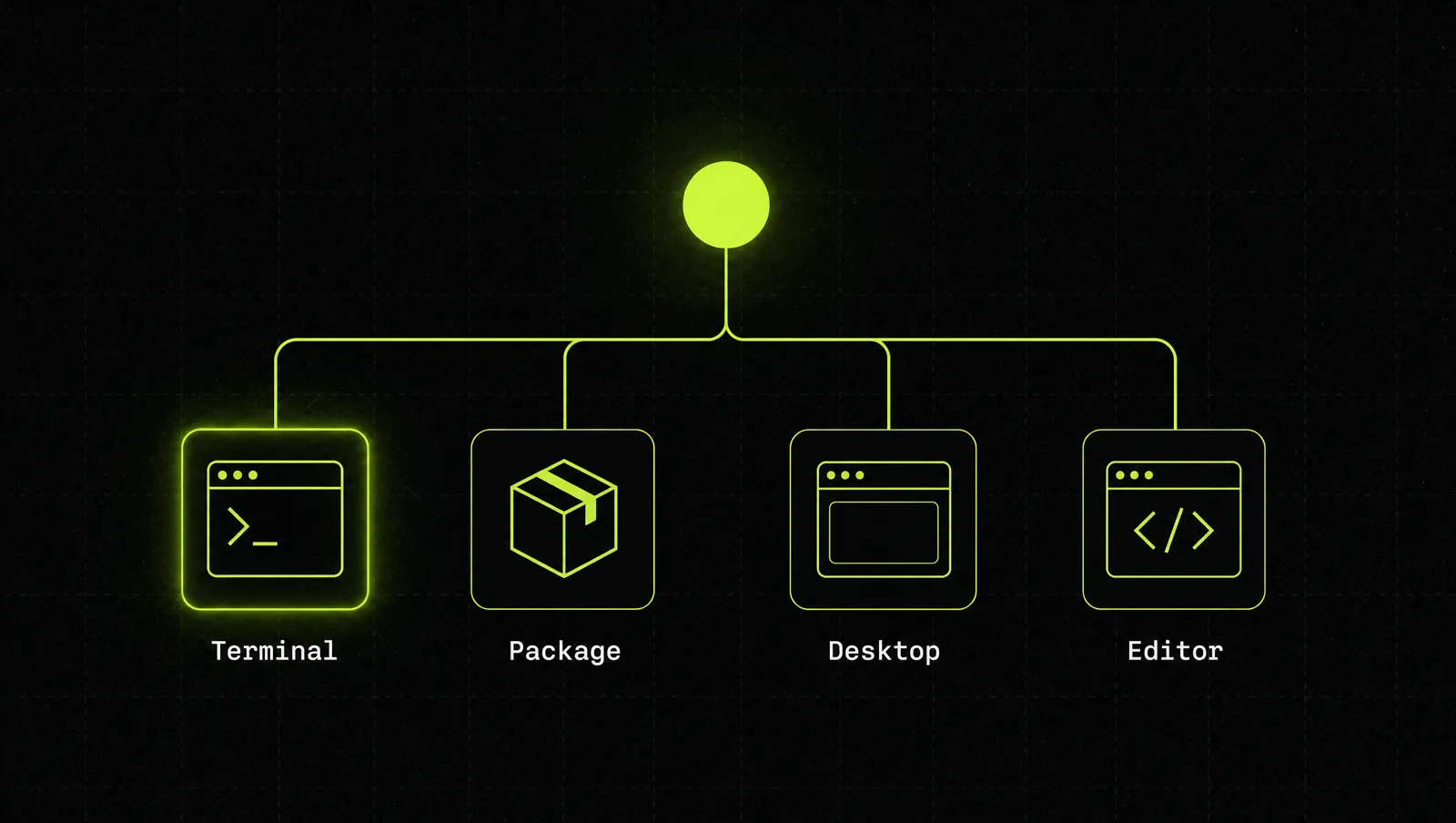
| Route | Best for | Updates |
|---|---|---|
| Native installer (recommended) | Anyone comfortable pasting one command into a terminal | Automatic, in the background |
| Homebrew (Mac) | Mac users who manage everything with brew | Manual: brew upgrade claude-code |
| WinGet (Windows) | Windows users who use the Windows package manager | Manual: winget upgrade Anthropic.ClaudeCode |
| npm | Developers who already live in Node.js | Manual: reinstall with @latest |
| Desktop app, Code tab | Founders and operators who never want to open a terminal | Through the app |
| VS Code extension | People who work in a code editor all day | Through the editor |
Our default: non-technical founders start with the desktop app, everyone else uses the native installer. The desktop app bundles Claude Code, so you don't need Node.js or the CLI to use the Code tab (desktop quickstart). We cover the app itself in the Claude desktop app guide.
How to install Claude Code in 5 steps
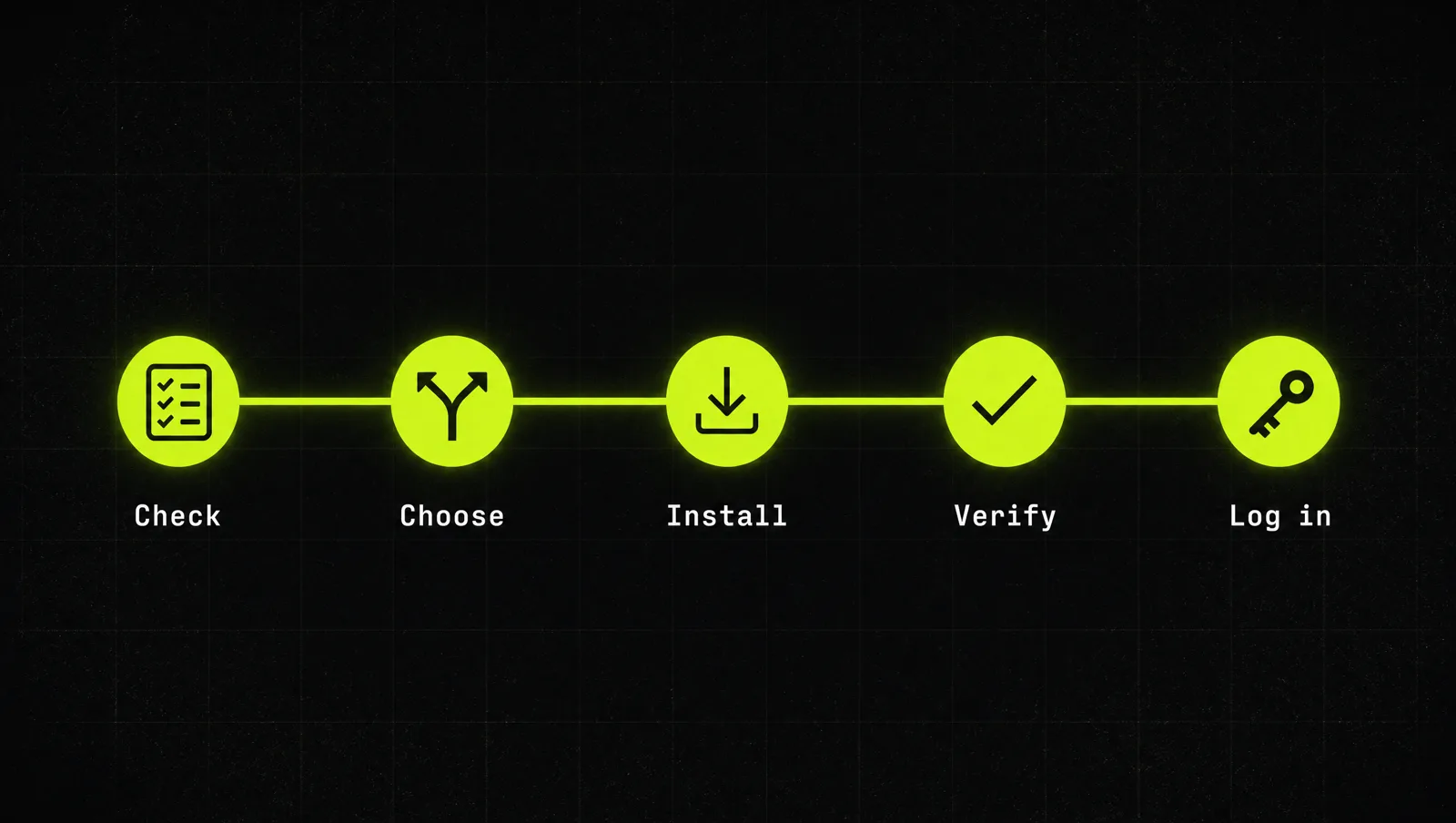
Step 1: Check your system and your plan
As of September 2026, the system requirements are:
- Operating system: macOS 13.0+, Windows 10 1809+ or Windows Server 2019+, Ubuntu 20.04+, Debian 10+ or Alpine Linux 3.19+
- Hardware: 4 GB+ RAM, x64 or ARM64 processor (no 32-bit Windows)
- Shell: Bash, Zsh, PowerShell or CMD
- Network: an internet connection, in one of Anthropic's supported countries
Then the account. Claude Code requires a Pro, Max, Team, Enterprise or Console account, and the free claude.ai plan does not include it (setup docs). Plans and prices change, so check the official Claude pricing page before you buy. We break down which plan fits which founder in Claude Code pricing.
Step 2: Choose where you want to use it
Decide first, because it changes what you download:
- Terminal (CLI): the full tool, works in any terminal, on servers and over SSH.
- Desktop app: a graphical interface. You pick a folder, type what you want, review the changes. Available for macOS (universal build), Windows (x64 and ARM64) and Linux as a beta via apt for Ubuntu and Debian (desktop quickstart).
- Code editor: the VS Code extension needs VS Code 1.94.0 or later. Press
Ctrl+Shift+X(Windows/Linux) orCmd+Shift+X(Mac), search for "Claude Code" and click Install (VS Code docs). The same extension installs in Cursor. For JetBrains IDEs, you install the CLI first and then the Claude Code plugin from the JetBrains Marketplace (JetBrains docs).
One detail that trips people up: the VS Code extension bundles its own private copy of the CLI for its chat panel. It does not put claude on your PATH. If you also want to type claude in a terminal, run the standalone install below as well.
Step 3: Run the installer for your system
Open a terminal (Terminal on Mac, PowerShell on Windows, your usual shell on Linux) and paste the command for your system. These are the commands exactly as the official setup docs show them.
Claude Code install on Mac, Linux or WSL:
curl -fsSL https://claude.ai/install.sh | bashClaude Code install on Windows (PowerShell):
irm https://claude.ai/install.ps1 | iexClaude Code install on Windows (CMD):
curl -fsSL https://claude.ai/install.cmd -o install.cmd && install.cmd && del install.cmdOn Windows you do not need to run as Administrator. Installing Git for Windows is optional: with it, Claude Code uses Git Bash for shell commands, without it, it uses PowerShell. If you use WSL, open your Linux distribution and run the Linux command inside it, not from PowerShell.
Prefer a package manager? The docs list these alternatives:
brew install --cask claude-codewinget install Anthropic.ClaudeCodenpm install -g @anthropic-ai/claude-codeThe npm package requires Node.js 22 or later as of v2.1.198 and installs the same native binary as the standalone installer. The docs are explicit: do not use sudo npm install -g. On Debian, Ubuntu, Fedora, RHEL and Alpine, there are also signed apt, dnf and apk repositories.
Step 4: Verify the install
Close the terminal, open a new window and run:
claude --versionA working install prints a version number followed by "(Claude Code)". For a deeper check, run:
claude doctorclaude doctor prints read-only diagnostics about install health, settings errors and warnings with suggested fixes, without starting a session (setup docs). Native installs update themselves in the background. To update right now, run claude update.
Step 5: Log in and start your first session
Go to the folder you want to work in and start Claude Code:
cd /path/to/your/project
claude
On first use, Claude Code asks you to log in and completes the login in your browser (quickstart). Your credentials are then stored, so you don't log in again every time. Inside the session you'll see the version, the current model and the working directory. Type /help for the available commands, /login to switch accounts, and /status to see which login method is active.
Start harmless: "Explain what's in this folder." Then give it one small, real job, which is where how to use Claude Code picks up.
Common install errors and fixes
Anthropic keeps a full troubleshooting page. These are the errors we see most:
command not found: claudeor'claude' is not recognized: the install worked, but the install folder isn't on your PATH yet. First open a new terminal window. If that doesn't help, add~/.local/bin(Mac, Linux) or%USERPROFILE%\.local\bin(Windows) to your PATH, as the troubleshooting page shows.'irm' is not recognized: you are in CMD, not PowerShell. Open PowerShell from the Start menu, or use the CMD command above.The token '&&' is not a valid statement separator: the opposite. You ran the CMD command in PowerShell. Use theirmcommand.A parameter cannot be found that matches parameter name 'fsSL': you pasted the Mac/Linux command into Windows PowerShell. Use theirmcommand.syntax error near unexpected token '<'or a 403: the install URL returned a web page instead of the script. If the page says "App unavailable in region", Claude Code isn't available in your country. Otherwise, try Homebrew or WinGet or retry after a few minutes.- Login fails in WSL2, over SSH or in a container: the browser opens on another machine. Paste the login code it shows into the terminal, or run
claude auth login. This organization has been disableddespite an active subscription: an oldANTHROPIC_API_KEYenvironment variable is overriding your plan. Remove it and startclaudeagain.
A real case: how Stripe rolled out Claude Code to 1,370 engineers

One laptop is a ten minute job. A whole company is a different problem, and Stripe's rollout, published as an Anthropic customer story, shows what it takes.
According to the case study:
- Stripe deployed Claude Code to 1,370 engineers with a zero-configuration setup that works immediately on every developer's machine.
- Security was the first blocker. Stripe's team saw random JavaScript packages on corporate laptops as an unacceptable supply chain risk, so they couldn't simply let engineers install whatever they wanted.
- Stripe's developer infrastructure lead, Scott MacVicar, worked with Anthropic for two to three months of testing and iteration to produce a signed enterprise binary that bypassed the npm dependency chain.
- Stripe's internal distribution put Claude Code on every laptop and every development box, pre-configured with rules and authentication, so nobody had to create an account or read configuration docs.
- The harder part was education: engineers learned to treat the AI like a capable new engineer who lacks business context, and to give it documentation, example code and patterns.
- One team migrated 10,000 lines of Scala to Java in four days, a project estimated at ten engineering weeks by hand.
Look at it through the system:
- Choose the route: Stripe picked the route that fit its security rules (a signed binary, not npm), the choice in Steps 1 to 3.
- Verify centrally: one team did the testing, so engineers didn't debug installs.
- Pre-configured login: authentication was set up in advance, removing the step where teams stall.
- Context after install: results came once engineers learned to brief the tool.
The lesson: in MacVicar's words, the goal was a tool that "just works out of the box". For a small team, that means one person documents the route, the commands and the fixes once, and everyone else follows it.
Three use cases
The examples below are illustrative, not real clients. They show which install route fits which setup.
Use case 1: Solo founder on a Mac
No coding background, wants CSV exports cleaned up. Route: desktop app, Code tab, Local environment, one folder. No terminal, no PATH problems.
Use case 2: Agency with five people on Windows
Some staff use CMD, some PowerShell. Route: one internal page with the irm command, the CMD fallback, the version check and the three Windows errors above. Errors get solved once, not five times.
Use case 3: Developer on a Linux server
Ubuntu over SSH, no browser. Route: native installer, then claude auth login with the code from the local browser. On a locked down server, the signed apt repository fits better.
How we run this with Claude
Inside CopyPasteCEO we let Claude help with the install itself, in one chat so it keeps the context. Copy these and fill in the brackets.
Prompt 1: get your exact install path
Make it yours · 0/4 filled
I want to install Claude Code. My computer: [MAC / WINDOWS / LINUX + VERSION]. My shell: [TERMINAL / POWERSHELL / CMD / WSL / DON'T KNOW]. My plan: [PRO / MAX / TEAM / ENTERPRISE / CONSOLE]. I want to use it in: [TERMINAL / DESKTOP APP / VS CODE]. Using only Anthropic's official docs at code.claude.com, give me the exact steps for my setup, one command per step, and tell me how to check that each step worked before I go to the next one.Prompt 2: fix an install error
Make it yours · 0/4 filled
I'm installing Claude Code on [SYSTEM] in [SHELL]. I ran this command: [COMMAND]. This is the full output: [PASTE ERROR]. Explain in plain language what went wrong, give me the fix from Anthropic's troubleshooting docs, and tell me the one command I run afterwards to verify it worked. Don't suggest sudo or disabling security features.These two prompts get Claude Code running. Deciding what to hand it first, writing the instructions it reads every session, and turning one job into a repeatable workflow is where judgment matters more than commands.
Where most people get stuck
Installing Claude Code takes ten minutes. Getting real work out of it takes longer, and most people stall right after the install:
- They fight the terminal instead of switching routes. Three failed commands in, they quit, when the desktop app would have worked.
- They have no first job. An empty session, no folder, no task. A week later it's forgotten.
- They roll it out without a standard. Everyone installs differently and nobody writes down what worked.
That is exactly the gap the Inner Circle is built for: playbooks to run Claude Code on real business work, a new playbook every week, and founders building their own setups next to you.