Claude MCP and Claude Connectors: How to Connect Claude to Your Tools (5 Steps)
Most founders use Claude like a very smart stranger. Every chat starts with copy and paste: the email thread, the meeting notes, the CRM record. The AI is fast. Shuttling context between tools is what eats your day.
This guide shows you how to use Claude MCP and Claude connectors to end that. You'll learn what the Model Context Protocol is, how connectors plug Claude into Google Drive, Gmail, your calendar, your CRM and your own systems, a five step setup you can finish in an afternoon, the security basics that keep it safe, and the two prompts we use once everything is connected.
The short version:
- MCP (Model Context Protocol) is an open standard, introduced by Anthropic in November 2024, that lets AI apps like Claude connect to external data, tools and workflows.
- In Claude, those connections are called connectors: you add them once, then switch them on per conversation.
- Gmail, Google Calendar and Google Drive connectors are available on every Claude plan, and custom connectors let you add any remote MCP server by URL.
- Claude asks for approval before actions like sending an email by default, and it only sees data your own account can already see.
- The golden rule of MCP security: only connect servers built and hosted by organizations you trust.
What is Claude MCP?
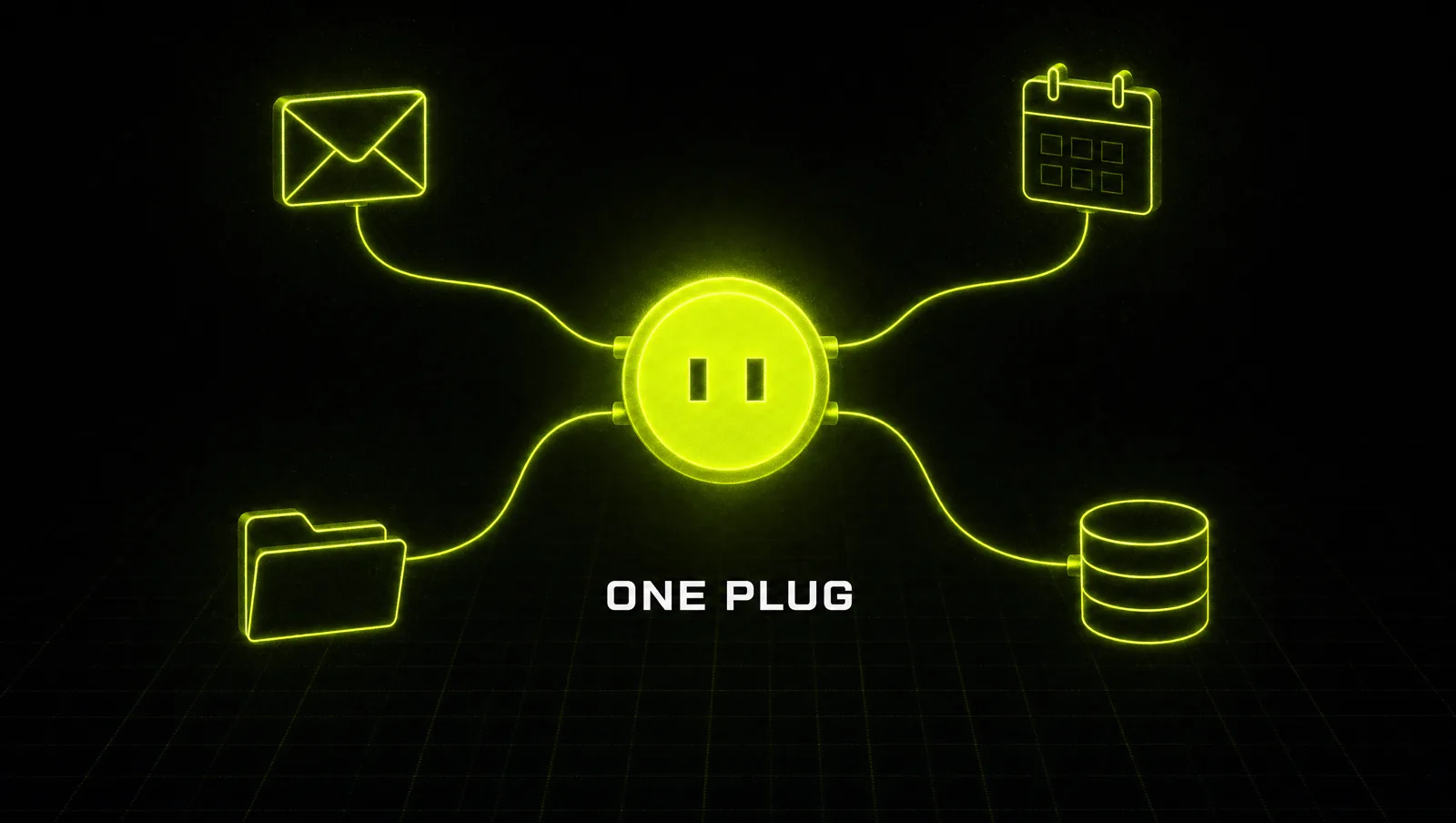
Claude MCP means Claude using the Model Context Protocol, an open source standard for connecting AI applications to external systems like files, databases, business tools and workflows. The official MCP documentation compares it to a USB-C port for AI: one standard plug instead of a custom cable for every device (modelcontextprotocol.io). Claude connectors are the product side of MCP: packaged connections inside Claude that let it read your data and take actions in services like Gmail, Drive or Slack (Claude Help Center).
In plain words: MCP is the standard, a connector is one plug built on that standard, and an MCP server is the thing on the other end of the plug that exposes a tool to Claude.
Anthropic describes connectors as working across Claude on the web, Claude Desktop, Claude Code and the API, and lists examples such as Google Drive, Gmail, Google Calendar, GitHub, Linear, Slack and Microsoft 365 (Claude Help Center). The full catalog lives in the Connectors Directory at claude.com/connectors.
The core: three ways to plug Claude into your business
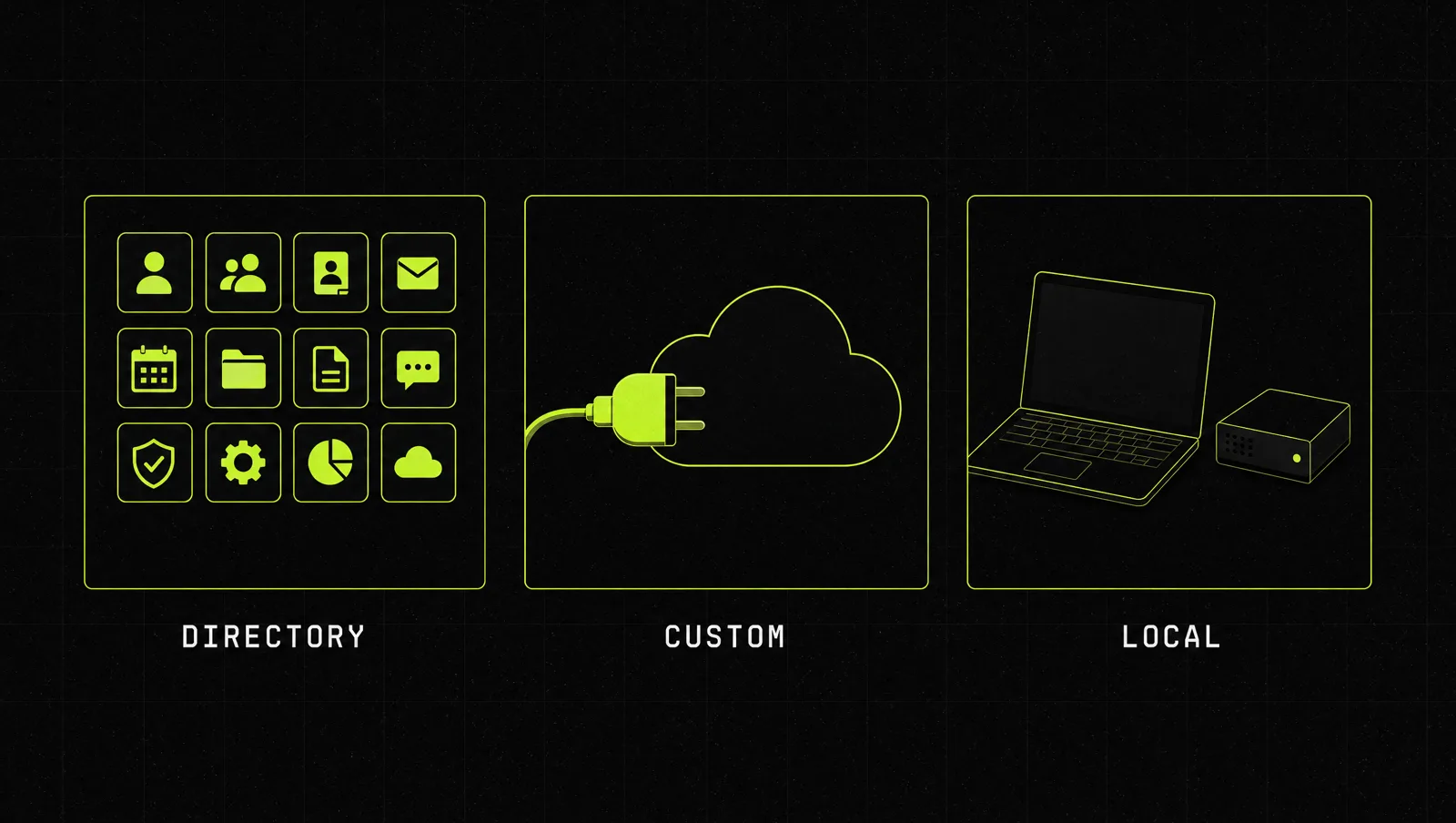
Almost every founder setup mixes three connection types.
| Connection type | What it is | Best for | Where you set it up |
|---|---|---|---|
| Directory connectors | Ready made connectors from the Connectors Directory | Gmail, Calendar, Drive, Slack, project tools | Customize > Connectors, or the "+" menu in a chat |
| Custom connectors | Any remote MCP server you add by URL | Your CRM, niche SaaS tools, internal systems, playbook libraries | Customize > Connectors > "Add custom connector" |
| Local MCP servers | Servers that run on your own machine or in your code project | Developer workflows, local files, databases | Claude Code, with the claude mcp add command |
As of September 2026, custom connectors using remote MCP are available on Free, Pro, Max, Team and Enterprise plans, with Free users limited to one custom connector (Claude Help Center). One detail matters for technical teams: a custom connector is reached from Anthropic's cloud, not from your laptop, so the server has to be reachable over the public internet.
If you want Claude to run your operations end to end, connectors are the foundation. We cover the bigger picture in Claude as your operations system.
How to connect Claude to your tools in 5 steps
Step 1: List the tools you copy and paste from
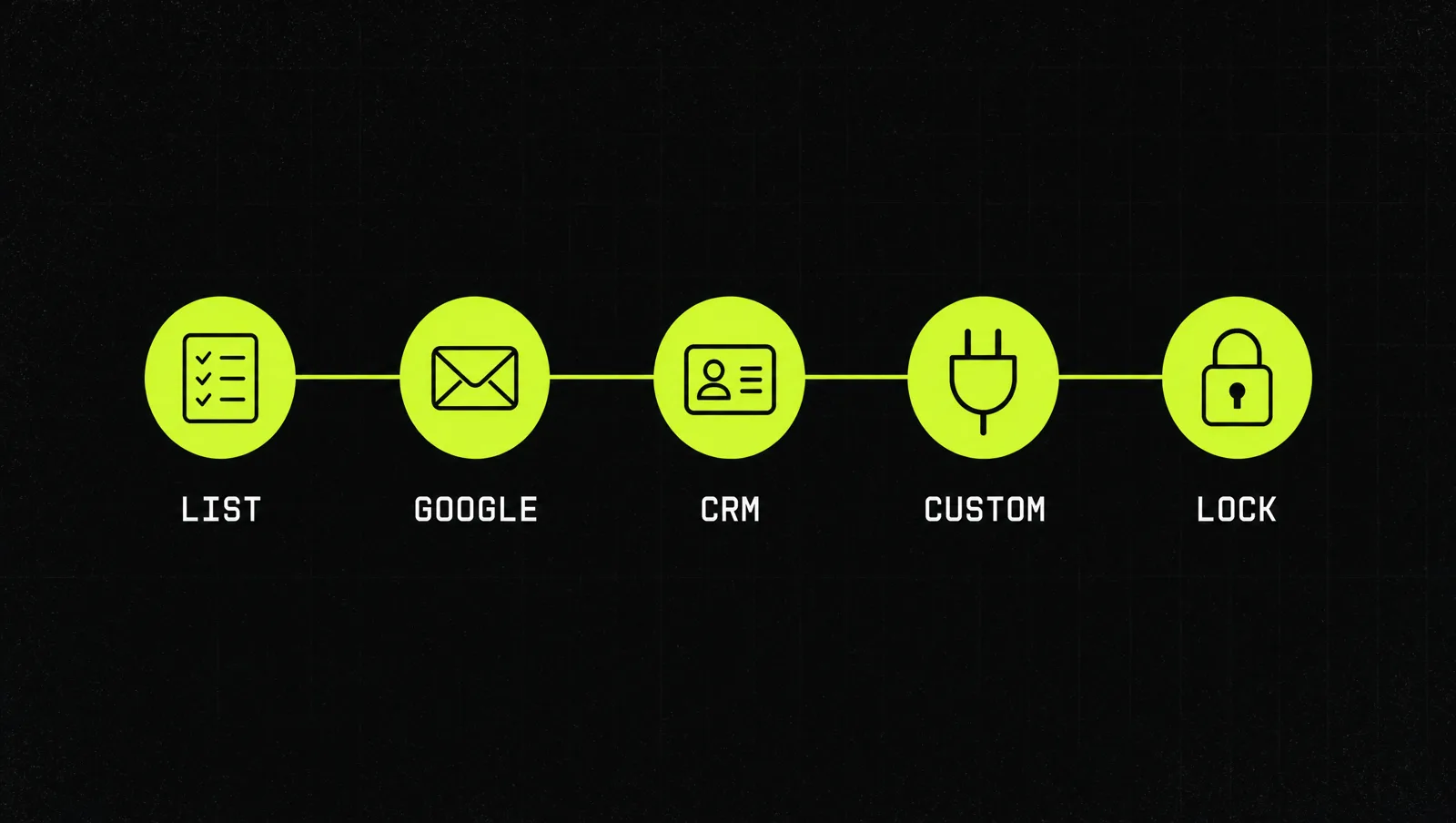
Before you click anything, write down the five tools you copy context out of most often: usually email, calendar, a document folder, the CRM and one project tool. Next to each one, write the job you want Claude to do with it: "summarize open deals every Monday", "draft replies to inbound leads", "prep me for tomorrow's calls". A connector without a job is just a permission you gave away.
Step 2: Connect Gmail, Google Calendar and Google Drive
These three give the biggest win for the least effort. According to Anthropic, the Google Workspace connectors are available for all users on Claude and Claude Desktop (Claude Help Center). Click the "+" in a chat, hover over "Connectors", toggle the ones you want and sign in with your Google account. On Team and Enterprise plans, an Owner has to enable them for the organization first.
What you get, per the same help article: Claude can search and read emails, draft them and send, reply or forward, asking for your approval before each of those actions by default. In Calendar it can view, create and update events and find mutual availability. In Drive it can search and read documents and save files it creates back to your Drive. One documented limit: Gmail attachments are metadata only, so Claude sees that a file is attached but not its contents.
Step 3: Add your CRM and daily work tools from the directory
Open Customize > Connectors, click "+" and browse the directory. Each listing shows use cases, read and write capabilities and availability (Claude Help Center). Connect only the tools from your Step 1 list. If your CRM or project tool is there, connect it and authorize with the service's own login. If it isn't, move to Step 4.
Step 4: Add custom connectors for everything else
Any tool that offers a remote MCP server can be added by URL. For individual plans, the documented path is Customize > Connectors, click "+", then "Add custom connector", paste the server URL, optionally add OAuth credentials under advanced settings, and click "Add" (Claude Help Center). On Team and Enterprise, an Owner adds it under Organization settings > Connectors, and members then click "Connect" to authenticate.
This is also how you plug in knowledge, not just software. A custom connector can serve a library of playbooks or internal procedures, so Claude pulls the right one into the conversation instead of you pasting it in. If you build with code, Claude Code adds servers with claude mcp add and lets you manage them with the /mcp command (Claude Code docs).
Step 5: Lock down permissions and switch connectors on per chat
Connected does not mean always on. You choose which connectors are active in each conversation through the "+" menu, and you can turn off individual tools you don't need (Claude Help Center). On Team and Enterprise plans, Owners can set each tool to "Always allow", "Needs approval" or "Blocked", for example allowing reads but blocking writes across the company (Claude Help Center). Disconnect anything unused under Customize > Connectors.
Security basics before you connect anything
MCP gives Claude real access to real systems. Treat each connector like a new employee login. The official guidance boils down to five rules:
- Only connect trusted servers. Anthropic's help center says to connect Claude only to servers built and hosted by organizations you trust (Claude Help Center).
- Read the OAuth screen. Check what the connector asks for before you click accept. OAuth means you never hand Claude your password, and you can revoke access at any time.
- Watch the write actions. Create, modify and delete tools deserve an approval step. Use "Allow always" only for tools you fully trust.
- Know the prompt injection risk. The Claude Code docs warn that servers which fetch external content can expose you to prompt injection, where hidden instructions in a web page or email try to steer the AI (Claude Code docs).
- Know your data rules. Claude only sees what your own account can see in the source system, and Anthropic states it does not train its models on your Gmail, Drive or Calendar connector data (Claude Help Center).
A real case: how MCP went from an Anthropic launch to an industry standard in one year
On November 25, 2024, Anthropic open sourced the Model Context Protocol. The launch included the specification and SDKs, local MCP server support in the Claude Desktop apps, and an open source repository of ready made servers for Google Drive, Slack, GitHub, Git, Postgres and Puppeteer (Anthropic). Block and Apollo were named as early adopters, and developer tool companies including Zed, Replit, Codeium and Sourcegraph were working with the protocol.
About a year later, on December 9, 2025, Anthropic donated MCP to the Agentic AI Foundation, a directed fund under the Linux Foundation co-founded by Anthropic, Block and OpenAI (Anthropic). By then, Anthropic reported more than 10,000 active public MCP servers, over 97 million monthly SDK downloads across Python and TypeScript, and more than 75 connectors in Claude's directory. The same announcement lists ChatGPT, Cursor, Gemini, Microsoft Copilot and Visual Studio Code among the products that had adopted MCP.
Look at it through the system:
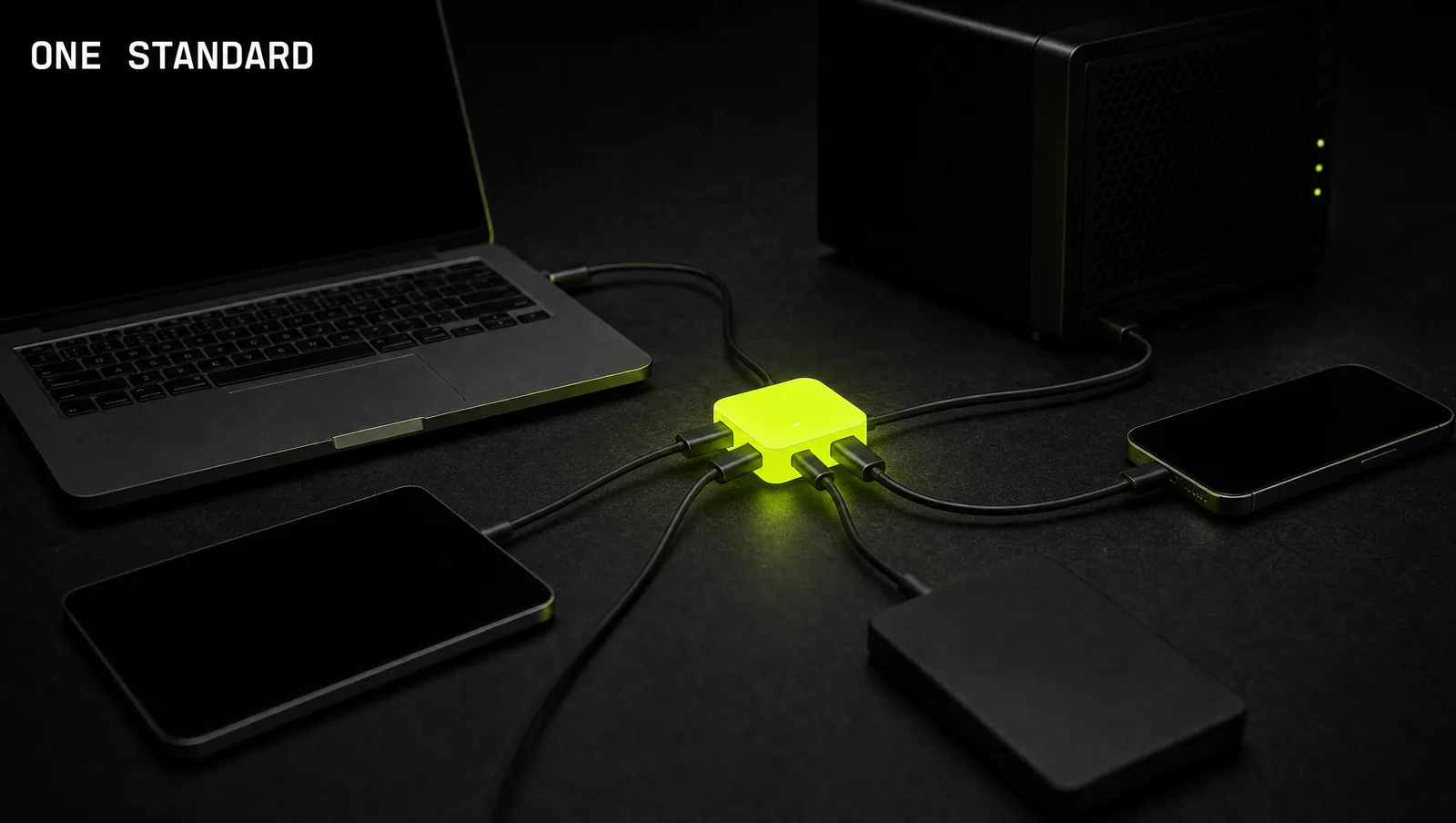
- One standard, many plugs: instead of a custom integration for every tool, one protocol made each new connector cheap to build.
- Start with the obvious tools: the first servers were the same ones founders use daily: files, chat, code and a database.
- Early adopters became co-owners: Block went from early adopter to co-founder of the foundation that now stewards the protocol.
The lesson: the value of an AI assistant comes from what it can reach, not only from how smart it is. The companies that won early were the ones that connected their tools first, then built workflows on top.
Three use cases
The examples below are illustrative, not real clients. They show what a connected Claude changes in three common businesses.
Use case 1: Agency owner
Before: every Monday starts with an hour of reading client emails and meeting notes to figure out what's on fire.
After: with Gmail, Calendar and Drive connected, one prompt asks Claude to scan last week's client threads, this week's calls and the latest status docs, then return a list of open promises per client with the source email for each. The owner reviews, and Claude drafts the follow ups for approval.
Use case 2: Coach or course creator
Before: sales calls are booked in one tool, notes live in another, and follow ups get forgotten.
After: the calendar connector plus a CRM connector let Claude prepare a one page brief before each call and draft a follow up afterwards. A custom connector with the coach's own playbooks means every draft uses the same offer language, not whatever the coach remembers that day.
Use case 3: SaaS founder
Before: feedback is scattered across support inboxes, a project tracker and shared docs.
After: connectors to the inbox, the tracker and Drive let Claude cluster feedback by theme and link each theme to the tickets that mention it. Write access to the tracker stays on "Needs approval", so nothing is created without a human click.
How we run this with Claude
Once your connectors are live, these two prompts do most of the daily work. Turn on the listed connectors in the chat first, then fill in the brackets.
Prompt 1: the connected weekly brief
Make it yours · 0/2 filled
Use my connected Gmail, Google Calendar and Google Drive. Look at the last [7] days of email with [CLIENTS OR DOMAINS], my calendar for the next [7] days, and the documents in [FOLDER NAME]. Give me: 1) open promises I made and to whom, 2) meetings I need to prepare for, with a 3 line brief each, 3) the 3 things most likely to go wrong this week. Cite the source email, event or document for every point. Do not send or change anything.Prompt 2: the connector audit
Make it yours · 0/1 filled
List every connector and tool you can access in this conversation. For each one, tell me: what it can read, what it can write or delete, and which of my jobs it supports: [LIST OF JOBS FROM STEP 1]. Then flag any connector with write or delete access that none of my jobs need, and suggest which tools I should switch off or set to approval.The first prompt turns connectors into time saved. The second keeps your setup lean.
Where most people get stuck
Connecting a first tool takes five minutes. Building a setup that saves hours every week takes longer. The usual reasons people stall:
- They connect everything and use nothing. Ten connectors, no defined jobs, so Claude still gets used like a blank chat.
- They skip the permissions. Write access stays wide open until a draft goes somewhere it shouldn't.
- They have tools but no playbooks. Claude can reach the inbox and the CRM, but there is no proven process telling it what good looks like.
That is exactly the gap the Inner Circle is built for: the playbooks to run it, a new playbook every week, and founders building their own connected setups next to you.