Claude Skills: How to Add Skills in Claude and Claude Code (Step by Step)

Most founders use Claude like a smart intern with amnesia. Every new chat starts with the same speech: here is my tone, here is my report format, never use these words. Two people on the same plan get very different results, and the difference is rarely the model. It is what the model knows about how you work.
This guide shows you how to add skills in Claude and in Claude Code, and how to build Claude skills that actually get used. You get what skills are according to Anthropic's own documentation, the exact setup for the Claude apps and for Claude Code, a SKILL.md template you can copy, a published customer result, and two prompts that write your first skills for you.
The short version:
- Claude skills are folders of instructions, scripts and resources that Claude loads automatically when a task matches the skill's description.
- In the Claude apps, you enable code execution in Settings, then manage and upload skills under Customize, Skills (as of September 2026).
- In Claude Code, a skill is a folder with a SKILL.md file in
~/.claude/skills/for all your projects or.claude/skills/for one project. - The description line decides everything: it is the only part Claude reads up front, so it has to say what the skill does and when to use it.
- One skill, one job. Small focused skills beat one giant "do everything" skill every time.
What are Claude skills?
Claude skills are packaged, reusable instructions that teach Claude how to do a specific task your way. Anthropic describes them as folders of instructions, scripts and resources that Claude loads when they are relevant to the task at hand (Anthropic announcement, October 16, 2025). A skill can be as simple as one markdown file with your writing rules, or as rich as a folder with templates, reference documents and Python scripts.
What makes skills different from a saved prompt is how they load. Anthropic's engineering team calls it progressive disclosure: at startup Claude only sees each skill's name and description, it reads the full SKILL.md when a task looks relevant, and it opens any extra files only when it needs them (Anthropic Engineering). That means you can install many skills without clogging every conversation. The same post notes that Agent Skills were published as an open standard in December 2025, so a well written skill is portable, not locked to one tool.
If you already run Claude as your operations system, skills are the building blocks underneath it: each one is a capability your system can call on.
The core: skills versus prompts versus Projects
The fastest way to understand Claude skills is to compare them with the two things people already use.
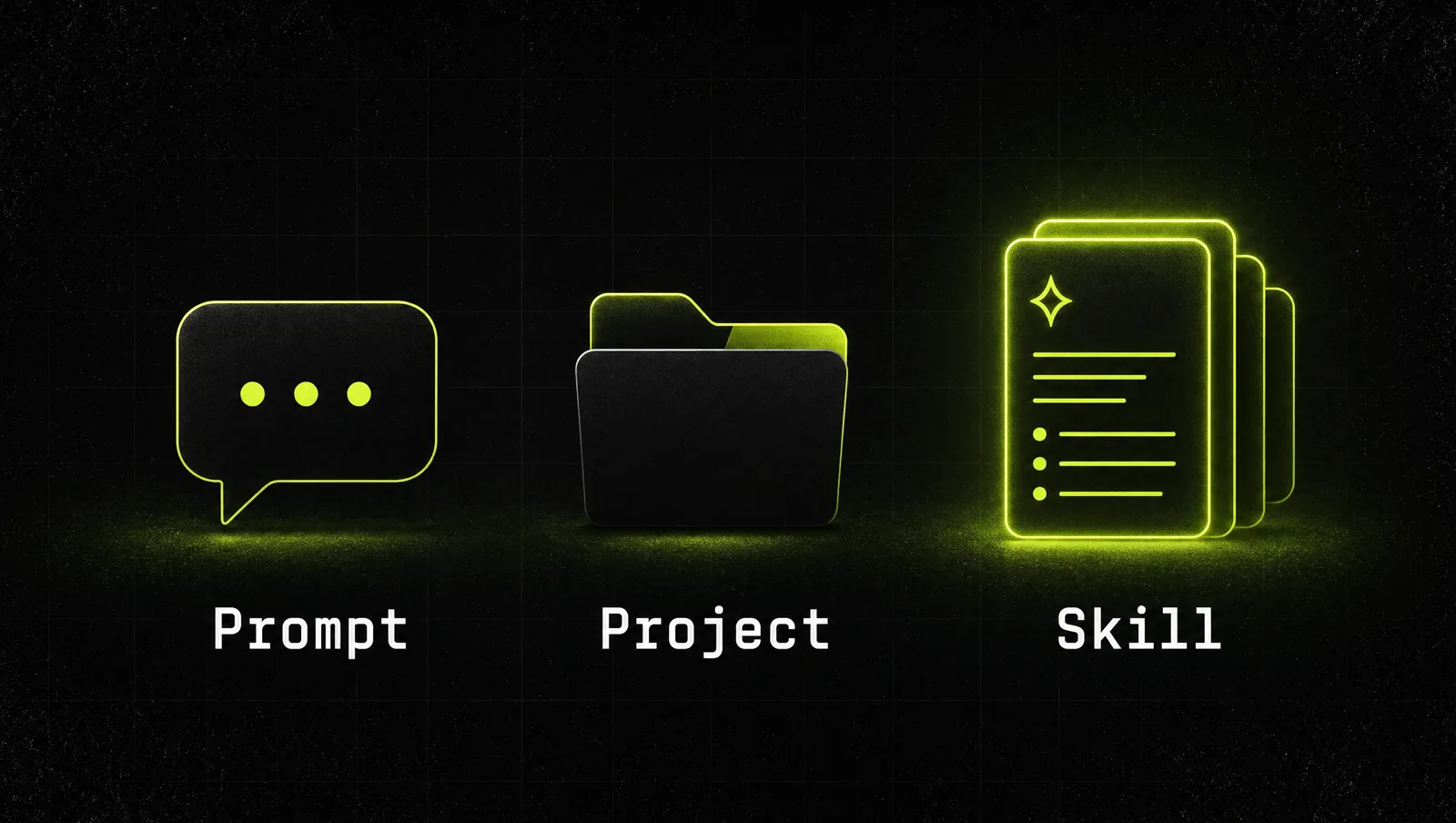
| Prompt in a chat | Project instructions | Claude skill | |
|---|---|---|---|
| When it applies | Only in the chat where you paste it | Every chat inside that one Project | Any chat where the task matches the description |
| How it loads | You paste it every time | Applied to every chat in that Project | Name and description first, full content only when needed |
| What it can hold | Text | Text and uploaded files | Instructions, templates, reference files and scripts |
| Best for | One-off requests | Context about one client or initiative | Repeatable procedures: formats, checklists, voice, workflows |
| Portability | Copy and paste | Stays in that Project | A folder you can reuse in the apps, Claude Code and the API |
The practical rule: context about what you are working on goes into a Project. Knowledge about how you do a task goes into a skill.
How to add skills in Claude in 5 steps
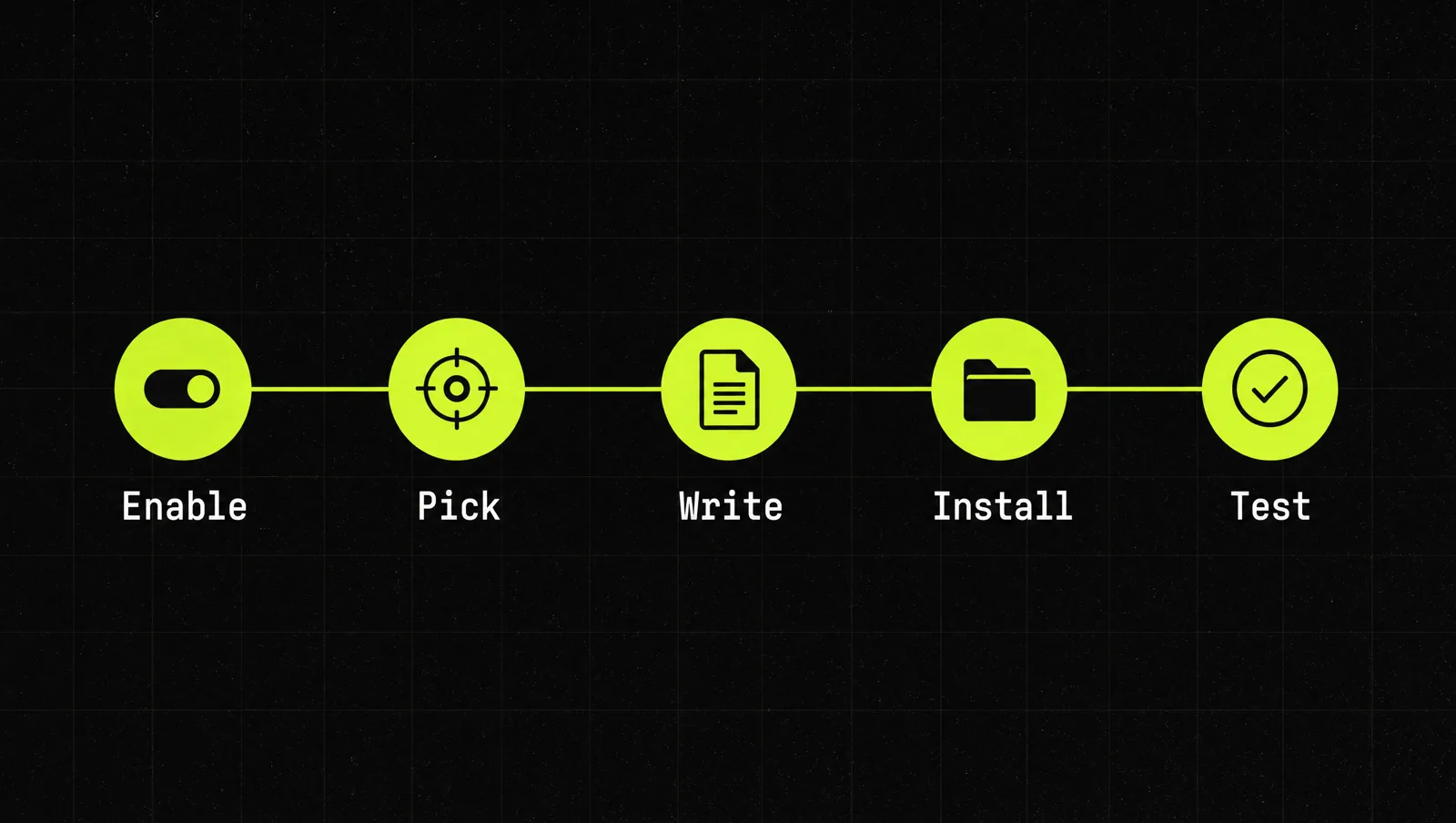
Step 1: Turn skills on
In the Claude apps (Free, Pro and Max): go to Settings, then Capabilities, and make sure "Code execution and file creation" is enabled. Then open Customize, Skills, where you can switch individual skills on or off, including Anthropic's example skills (Claude Help Center).
On Team and Enterprise plans: an owner opens Organization settings, Plugins and skills, goes to the Policy tab and enables both code execution and Skills. Members then toggle skills under Customize, Skills (Claude Help Center).
In Claude Code: nothing to switch on. Claude Code picks up skills from its skills folders automatically (Claude Code docs).
These are the documented paths as of September 2026. If a menu looks different in your account, check the help center first.
Step 2: Pick one repeatable job
Don't start with "make Claude better at marketing". Start with a task you do weekly and explain the same way every time: your newsletter format, your proposal checklist, your client report layout, your house style for LinkedIn posts. Anthropic's own guidance says to keep each skill focused on a single workflow (Claude Help Center).
Step 3: Write the SKILL.md
Every skill is a folder with one required file, SKILL.md. It starts with a short YAML header, then the instructions in plain markdown. Here is the template we use:
---
name: weekly-client-report
description: Formats weekly client reports with KPIs, traffic-light flags and next steps. Use when I ask for a client report, weekly update or performance summary.
---

## When to use
Whenever I ask for a client report, weekly update or KPI summary.

## Rules
1. Always start with the three numbers that changed most.
2. Flag every KPI green, yellow or red against the target.
3. Never invent numbers. If data is missing, say so.

## Output format
One headline sentence, a KPI table, max five bullets of next steps.
Two details matter. First, the description is what Claude reads to decide whether to load the skill, so it must say what the skill does and when to use it. For skills uploaded in the Claude apps, the help center lists a 64 character maximum for the name and 200 characters for the description (Claude Help Center). Second, you can add extra files next to SKILL.md, such as examples or reference documents, and point to them from the instructions. Claude only opens them when needed (Claude Code docs).
Don't want to write from scratch? Anthropic ships a "skill-creator" skill that walks you through building a skill interactively (Anthropic announcement). Or grab our free Claude Skills Starter Kit, which includes this template, the setup for both environments and five ready-made starter skills.
Step 4: Install it where you work
Claude apps: zip the skill folder so the folder itself sits at the root of the archive (not loose files), then go to Customize, Skills, click the plus button, choose "Create skill" and "Upload a skill" (Claude Help Center). The most common upload errors are a folder name that doesn't match the skill name and a missing skill file.
Claude Code skills: save the folder in the right place (Claude Code docs):
~/.claude/skills/<skill-name>/SKILL.mdfor a personal skill in all your projects..claude/skills/<skill-name>/SKILL.mdinside a repository for a project skill you can commit and share with your team.- Skills can also come from plugins, where they show up as
/plugin-name:skill-name.
In Claude Code every skill also becomes a slash command: a folder called weekly-client-report can be run with /weekly-client-report. Claude can still load it on its own when your request matches the description. The docs note that the older .claude/commands/ files still work, but skills are the recommended format for new work.
Step 5: Test and tighten
Ask for the task in your normal words, without naming the skill. If Claude doesn't pick it up, the description is too vague: add the phrases you actually use ("weekly update", "client summary"). If Claude picks it up but ignores a rule, move that rule higher and make it concrete. Anthropic recommends testing after every significant change and including example inputs and outputs in the skill (Claude Help Center).
One security note from the same docs: skills can contain code, so only install skills from sources you trust, and read every file of a downloaded skill before enabling it.
Five Claude skills to build first
These are the skills we see pay off fastest for founders. Each one is a 15 minute build with the template above.
- Your Voice. Three samples of your real writing plus the rules that make them yours. Every draft starts closer to done.
- The Humanizer. Strips filler intros, buzzwords and robotic rhythm from any text before you see it.
- The Offer Checker. Your standards for anything customer facing. Pairs well with our guide on how to make a grand slam offer.
- The Report Format. How numbers are presented: which KPIs, which flags, what gets cut.
- The Slide Builder. Your fixed deck structure: title style, words per slide, order of sections.
The mistake that kills skills: one mega skill that "does everything". The trigger becomes mushy, the rules contradict each other and Claude loads it at the wrong moments. If your SKILL.md scrolls past two screens, split it.
A real case: what skills did for Rakuten and Box

When Anthropic launched Agent Skills on October 16, 2025, it published results from early users alongside the announcement (Anthropic):
- Rakuten used skills for management accounting and finance workflows. Its General Manager of AI, Yusuke Kaji, said the team can now do in an hour what used to take a day.
- Box used skills so users can turn stored files into PowerPoint, Excel and Word documents that follow their organization's standards, which the company says saves hours of effort.
- Notion reported less prompt wrangling on complex tasks and more predictable results.
- At launch, skills were available in the Claude apps, in Claude Code and on the Claude Developer Platform through the API.
Look at it through the system:
- One repeatable job per skill: finance workflows at Rakuten, company standard documents at Box. Neither is "make the AI smarter".
- Procedure, not context: the skill carries how the work is done (format, standards, steps), so every person gets the same quality.
- Predictability is the product: the Notion quote is about predictable results, which is exactly what a written procedure buys you.
The lesson: the gains didn't come from a better model. They came from writing the company's own way of working down once, in a format Claude loads automatically, instead of re-explaining it in every chat.
Three use cases
The examples below are illustrative, not real clients. They show how the same system looks in three different businesses.
Use case 1: Agency owner
Before: every client report is rebuilt by hand, and every account manager formats it differently.
After: a project skill in the agency's shared repository defines the report layout, KPI flags and tone. Anyone on the team asks for "the weekly report for [client]" and gets the same structure.
Use case 2: Coach or creator
Before: long explanations of voice and audience at the start of every content session.
After: a Voice skill plus a Humanizer skill. Every draft comes out in the creator's style. Combined with our Claude prompts for founders, content sessions get much shorter.
Use case 3: E-commerce founder
Before: product descriptions and refund replies written from scratch, inconsistent in tone.
After: two small skills, one for product copy, one for customer service replies, each with examples of the best past version. Claude picks the right one based on the request.
How we run this with Claude
Inside CopyPasteCEO we don't write skills by hand anymore. We let Claude interview us and draft them. Here are the two prompts, copy-paste ready. Fill in the brackets.
Prompt 1: find the skills worth building
Make it yours · 0/3 filled
You are an operations advisor. My business: [WHAT YOU SELL] to [WHO]. Here are the tasks I do or explain to Claude every week: [LIST OF RECURRING TASKS]. For each task, rate how often it repeats, how much my way of doing it differs from a generic approach, and how costly mistakes are. Then recommend the 3 tasks that should become Claude skills first, and for each one write a skill name in lowercase with hyphens and a description under 200 characters that says what it does and when to use it.Prompt 2: draft the SKILL.md
Make it yours · 0/6 filled
Write a complete SKILL.md for a Claude skill called [SKILL NAME]. Purpose: [WHAT IT DOES]. It should trigger when I say things like [PHRASES I USE]. My rules: [YOUR RULES]. Here are two examples of great past output: [EXAMPLE 1] [EXAMPLE 2]. Use YAML frontmatter with name and description, then sections for When to use, Rules (most important first, including what to never do) and Output format. Keep it under one screen. Then list 3 test requests I should try, one of which should NOT trigger the skill.These two prompts get you a working first skill in about ten minutes. Deciding which procedures deserve a skill, and keeping them sharp as your business changes, is where judgment matters more than templates.
Where most people get stuck
Installing a skill takes two minutes. Building a set of skills that runs a business is the hard part. The usual reasons people stall:
- Vague descriptions. "Helps with writing" never triggers at the right time, so the skill sits unused.
- Mega skills. One file for everything, rules that contradict each other and output that gets worse, not better.
- No feedback loop. Skills are written once and never tightened, so they drift away from how the business actually works.
That is exactly the gap the Inner Circle is built for: playbooks for building and running your Claude skills, a new playbook every week, and founders building their own systems next to you.